
How to find large videos on iPhone and make them smaller
Photos can't sort videos by size, but length is a good guide: open Media Types → Videos and look at the longest. A minute of 4K video takes several hundred megabytes. You can delete what you don't need, record future video in 1080p, or shrink the ones you keep.
Find the long ones
- In Photos, open Media Types → Videos (on iOS 17, Albums → Media Types → Videos). Each shows its length.
- Check Settings → General → iPhone Storage → Photos: if it offers Review Personal Videos, it lists the largest for you.
Record smaller video from now on
In Settings → Apps → Camera → Record Video (Settings → Camera on iOS 17), choose 1080p at 30 fps unless you need 4K. Turn on HEVC under Formats → High Efficiency, which is about half the size of the older format.
Keep them, but not on your iPhone
With iCloud Photos and Optimise iPhone Storage on, your iPhone keeps a small version and the full one stays in iCloud. Without it, you can save videos to iCloud Drive or a computer and delete them from Photos.
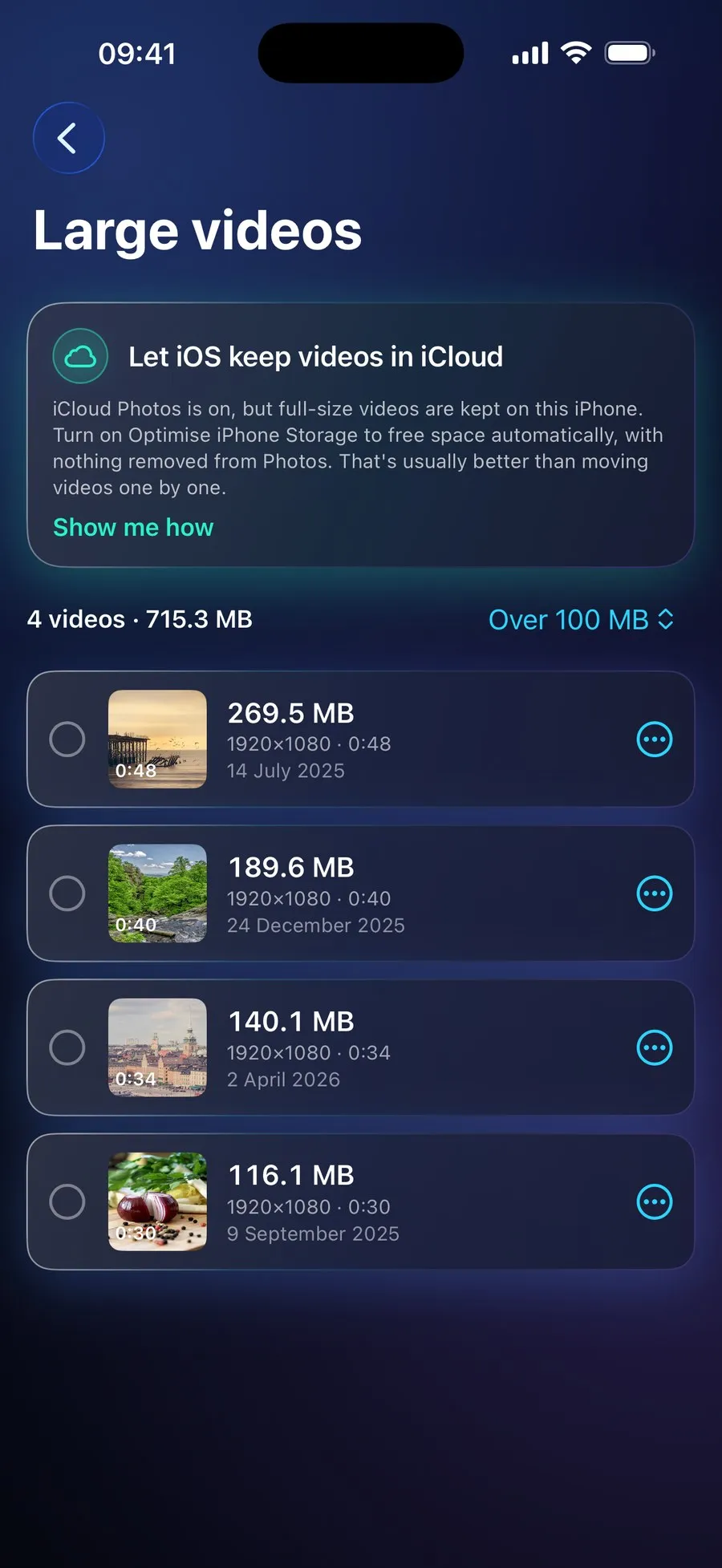
With RefreshMyPhone
RefreshMyPhone lists your largest videos first, with a preview, size, resolution and length.
It can shrink them at one of three quality settings, with a size estimate before you start, or move them to iCloud Drive, freeing the space once iCloud confirms the upload. Copies keep the original's date, place, favourite and albums, and the original stays until you choose to remove it.


On the App Store and Google Play (as Refresh: Photo & Video Cleanup). Free to scan; €9.99 a year unlocks every clean-up. The yearly plan starts with a 7-day free trial for new subscribers: on Google Play now, and on the App Store from 16 November.