The app
Nightfall and Hibernia Glass
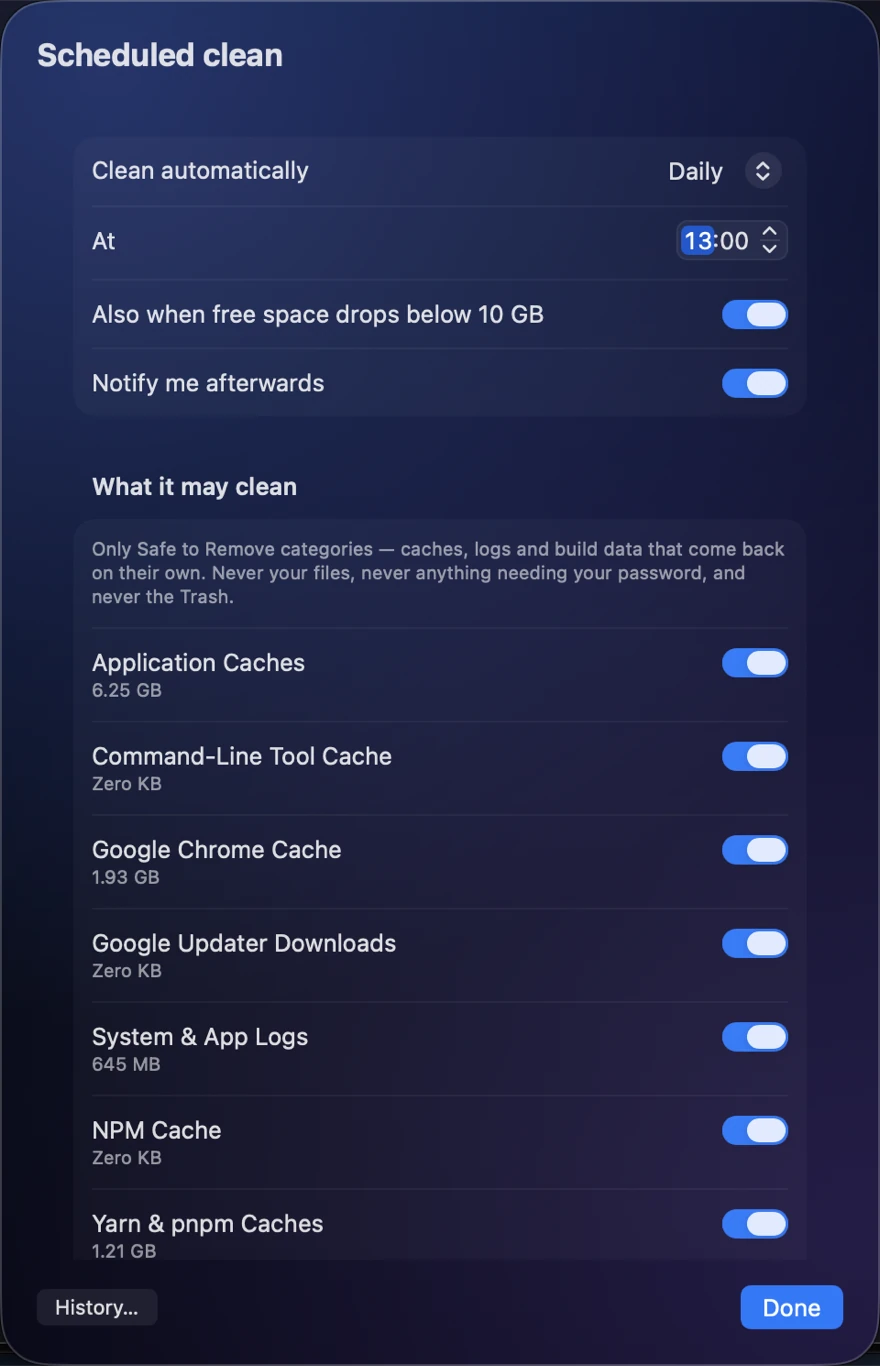
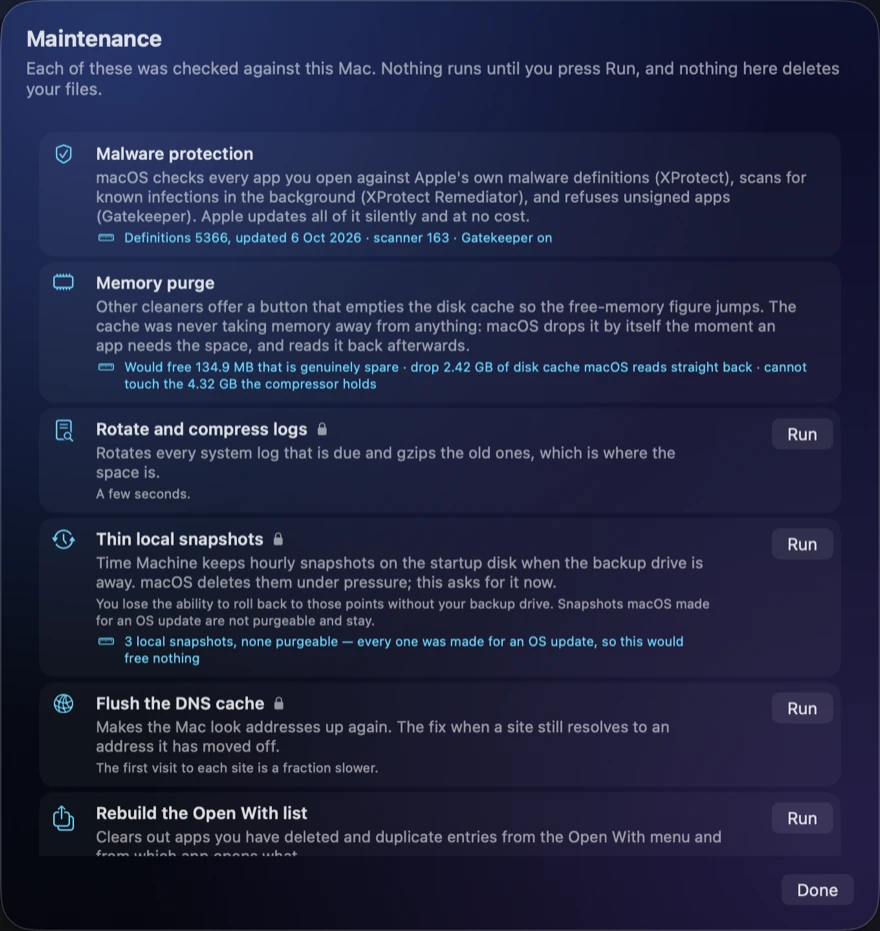
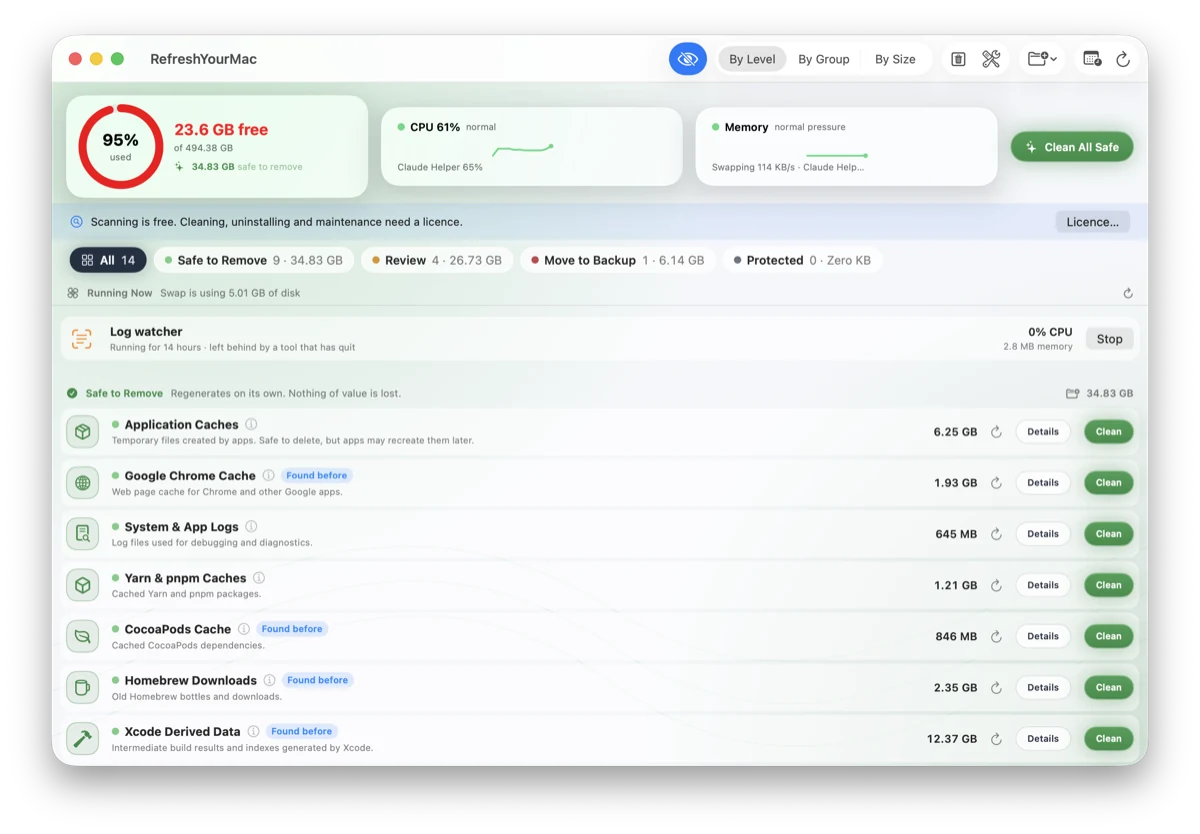
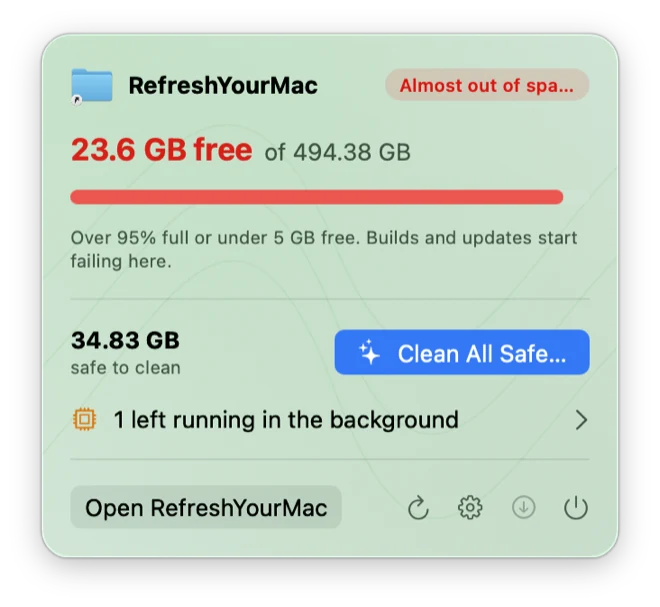
RefreshYourMac comes in two skins. Nightfall is the default, dark with cyan and violet glows. Hibernia Glass is light and green, with Apple's Liquid Glass on macOS 26. Pick one in Settings, and the safety colours mean the same in both.
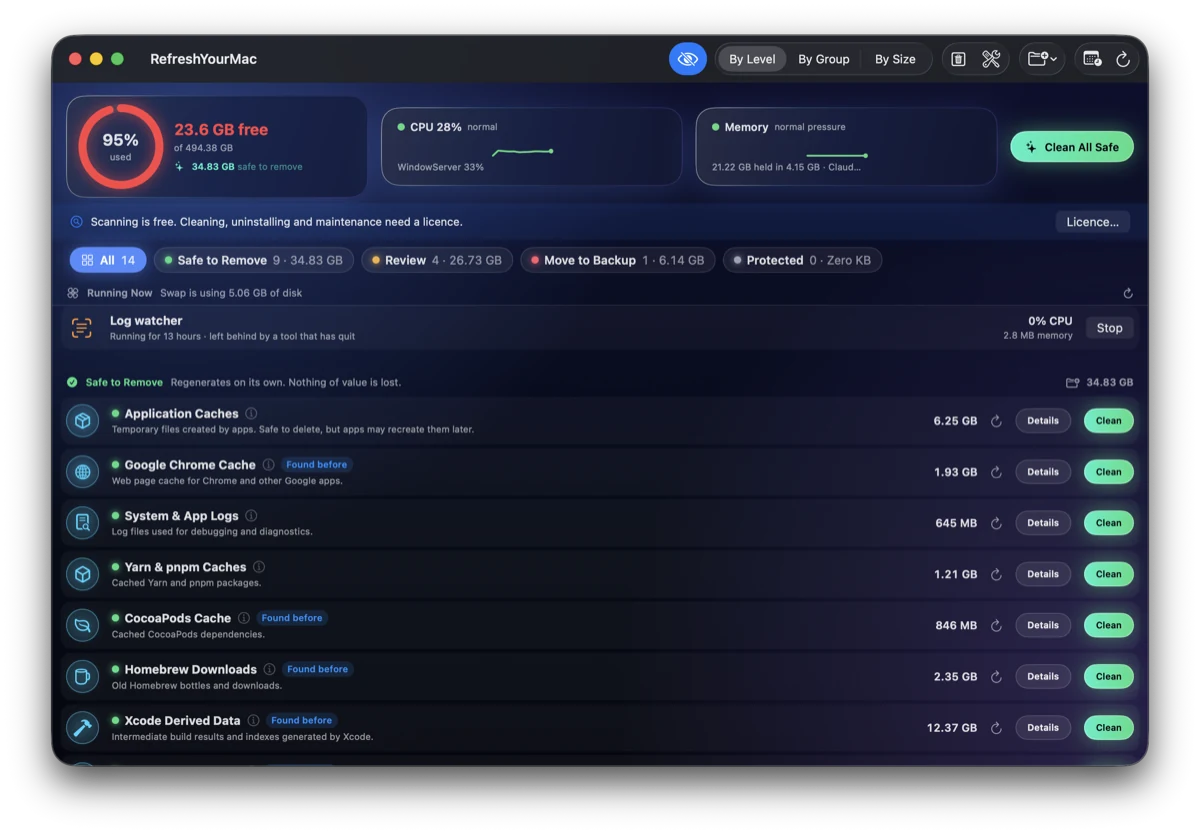
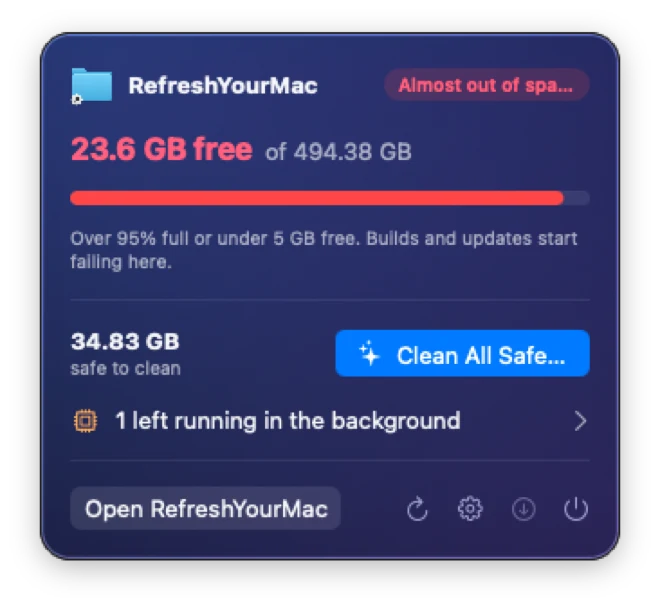
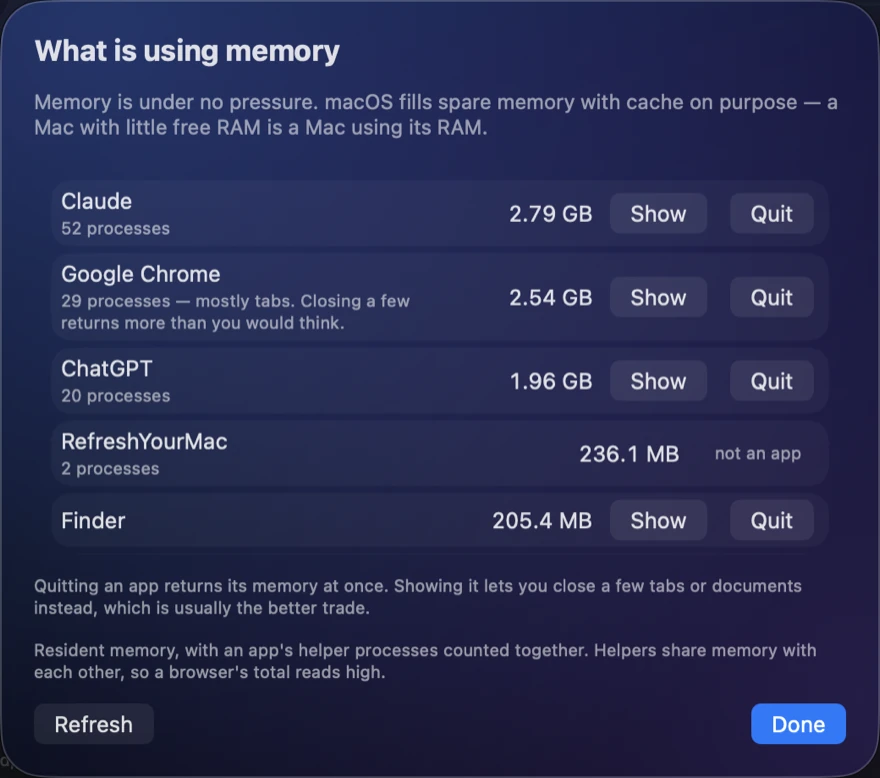
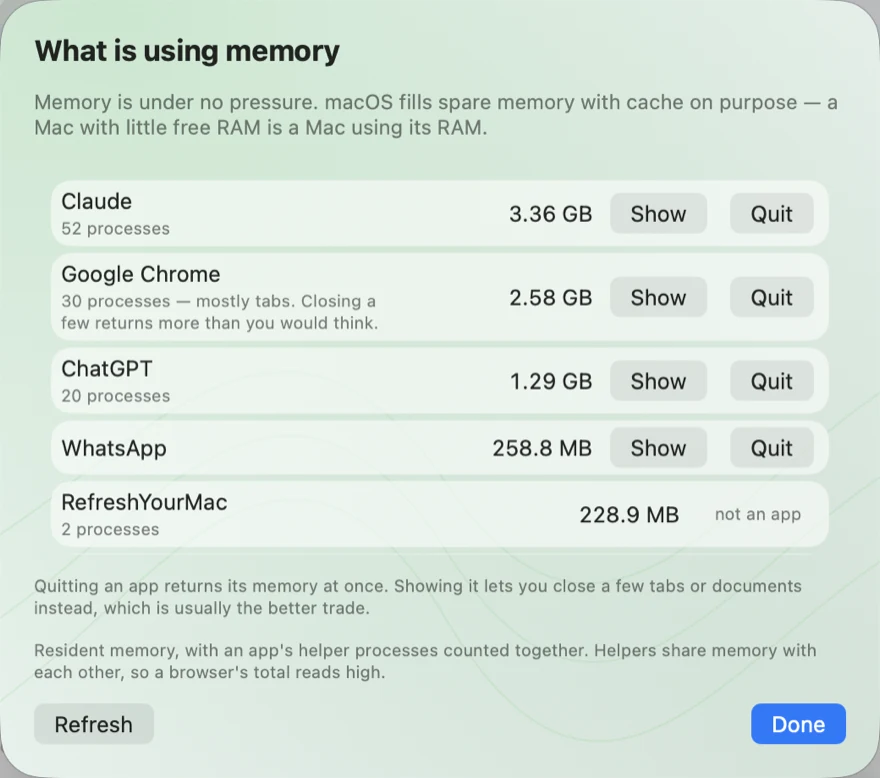
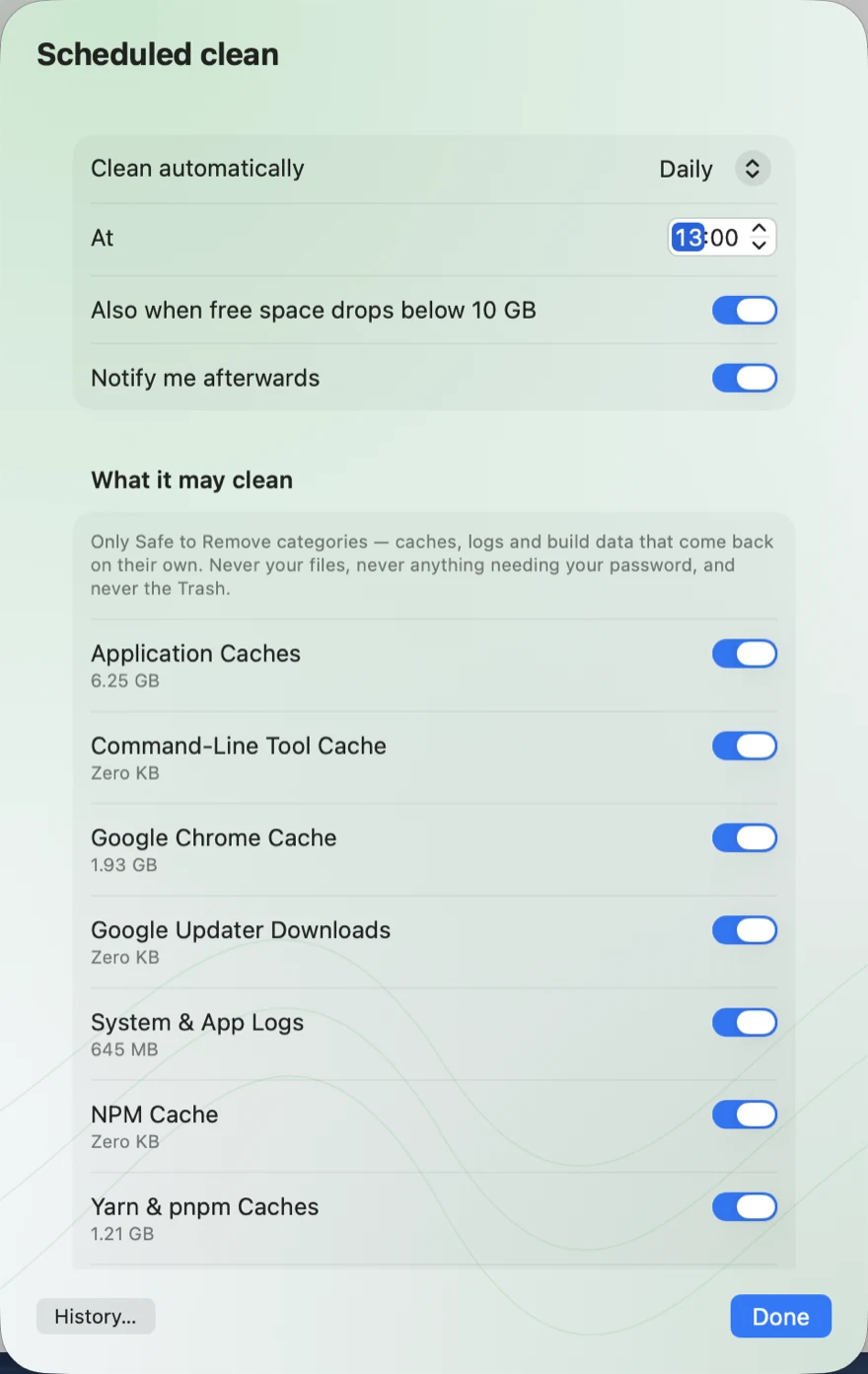
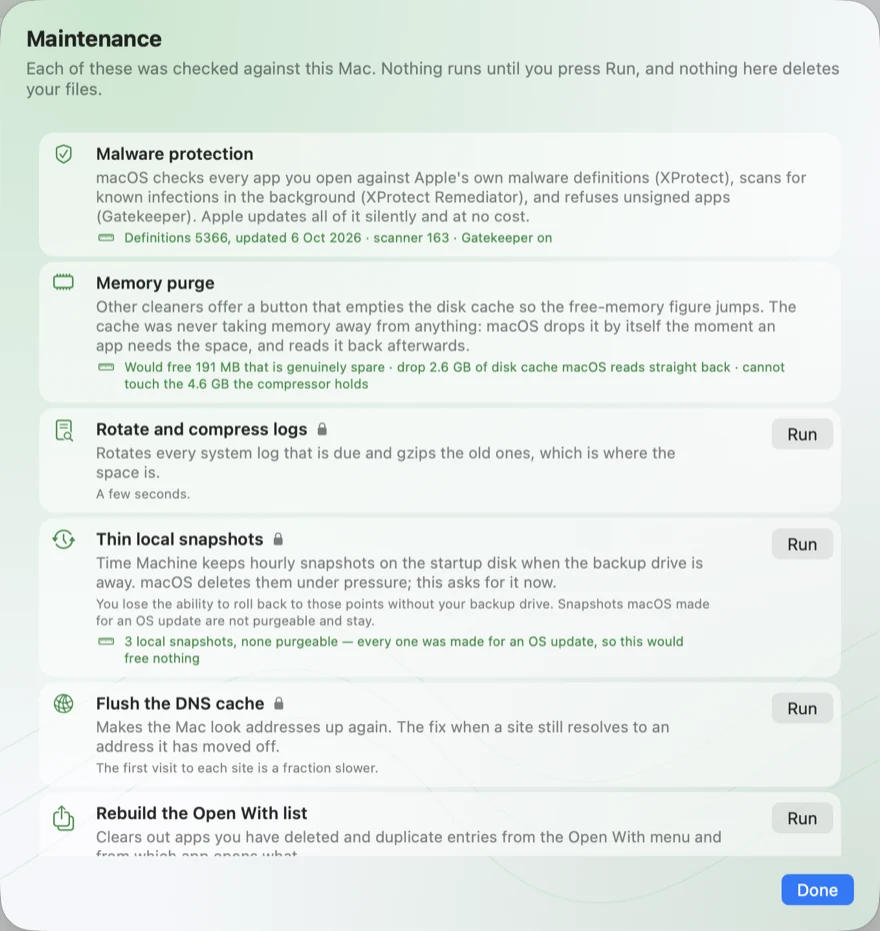
Both skins show the same numbers below: one Mac in the app's sample mode, captured on 8 October 2026, so you can compare them like for like. Select any picture to see it full size.
Nightfall
The default. A deep navy window with cyan and violet glows, and a ring that sweeps while the scan runs. It is dark whatever your Mac's appearance is set to, so it looks the same at noon and at midnight.
Hibernia Glass
Light and green, with navy controls. On macOS 26 the tiles are Apple's Liquid Glass; on macOS 15 they are frosted panels instead, which is the closest the older system can draw. It is light whatever your Mac's appearance is set to.
What stays the same
The four safety colours keep their meaning in both skins: green for Safe to Remove, amber for Review, coral for Move to Backup and grey for Protected. Every button, every measurement and every rule about what may be deleted is identical. A skin changes how the window looks and nothing about what it finds or cleans.
How to switch
Open Settings with ⌘ , and choose a skin under Appearance. The window changes straight away, and the sheets it opens follow it. The same pane has a switch for the scanning and cleaning animations, if you would rather the window kept still. Skins arrived in version 1.2h and are included for everybody, licence or not.