
How to delete burst photos and similar photos on iPhone
A burst is stored as one stack. To delete all of it, open it in Photos and tap the bin. To keep the best frames, open it, tap Select, tick the frames you want, tap Done and choose Keep Only Favourites. Shots you took one at a time, seconds apart, aren't grouped by Photos at all, so you have to compare them yourself.
Delete a whole burst
- In Photos, open Media Types → Bursts (on iOS 17, Albums → Media Types → Bursts). Each burst shows as one photo.
- Open the burst and tap the bin. Every frame in it goes to Recently Deleted, so keep any you want first (below).
Keep the best frames of a burst
- Open the burst and tap Select, or the Burst (number) label at the top left, and swipe through the frames. Grey dots under the thumbnails mark the frames Photos suggests keeping.
- Tick the ones you want to keep, then tap Done.
- Choose Keep Only Favourites. The other frames go to Recently Deleted.
Stop taking bursts by accident
On recent iPhones a burst starts when you drag the shutter button to the left, and keeps going until you lift your finger. If you take photos with the volume button, look in the Camera settings for Use Volume Up for Burst: while it is on, holding volume up takes a burst.
Shots taken one at a time
Most near-identical photos aren't bursts: they are three or four taps of the shutter. Photos keeps them all as separate pictures, and its Duplicates album only catches ones that are almost exactly the same. The only way in the Photos app is to scroll, compare and delete by hand.
Questions
How do I delete burst photos on iPhone?
Open Photos → Media Types → Bursts, open the burst and tap the bin to delete all of it. To keep some frames, tap Select first, tick them, tap Done and choose Keep Only Favourites.
Does deleting a burst delete every photo in it?
Yes. The whole burst goes to Recently Deleted, where it stays for 30 days. Keep the frames you want as separate photos first.
Why does my iPhone take burst photos?
Dragging the shutter button to the left takes a burst, and with Use Volume Up for Burst on in the Camera settings, so does holding the volume up button.
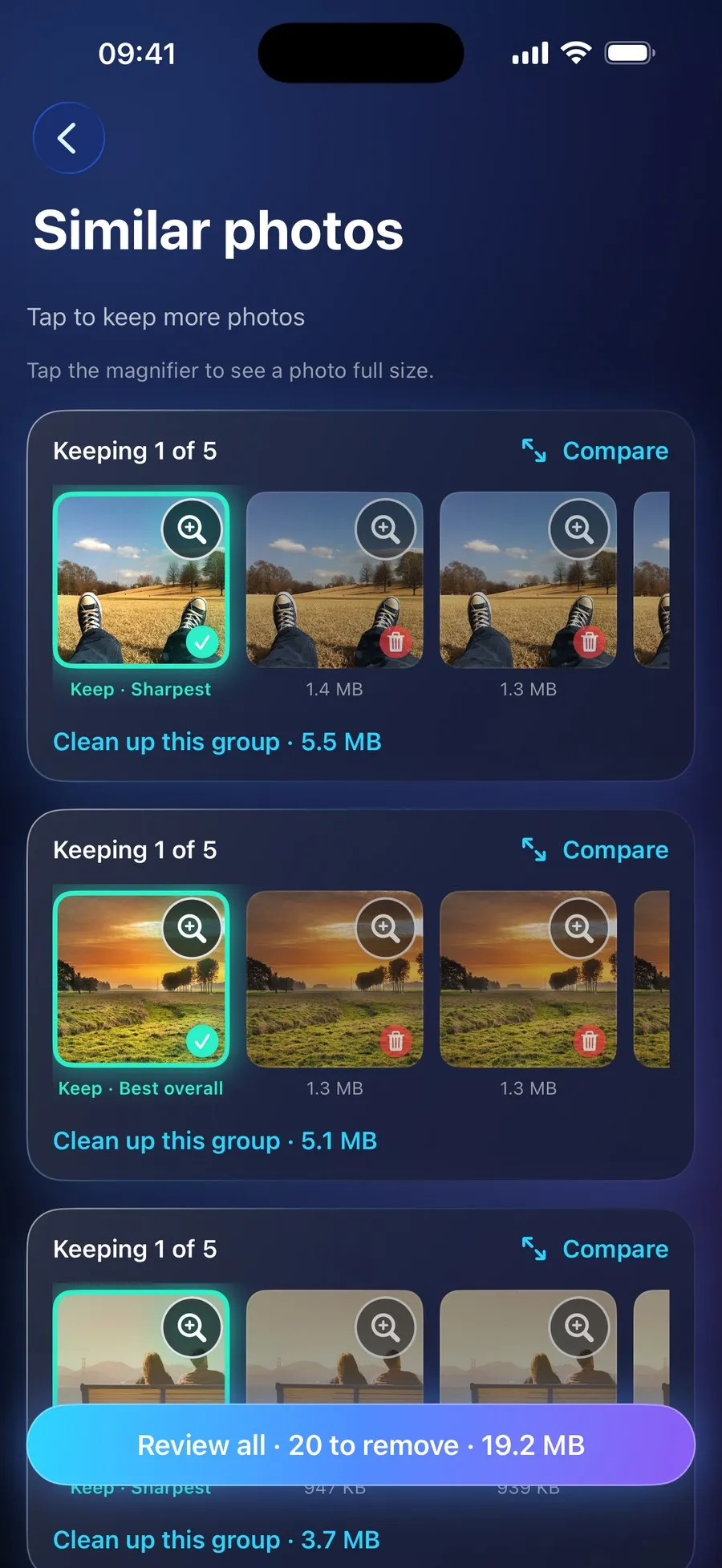
With RefreshMyPhone
RefreshMyPhone groups bursts and near-identical shots together, wherever they are in your library, looking at every frame of a burst rather than only the one Photos shows, and suggests the best of each group by sharpness, exposure, faces and favourites.
Tap to keep more than one, open any photo full screen with zoom to compare, and review the whole clean-up before anything is removed.


On the App Store and Google Play (as Refresh: Photo & Video Cleanup). Free to scan; €9.99 a year unlocks every clean-up. The yearly plan starts with a 7-day free trial for new subscribers: on Google Play now, and on the App Store from 16 November.